
Why Are GPS Directions Silent in My Helmet Bluetooth?

Why Are GPS Directions Silent in My Helmet Bluetooth?
GPS directions can stay silent in helmet Bluetooth because navigation voice is muted, a route is only being previewed, or the prompt is going to another audio output. Check whether the app speaks through the phone first, then compare the same prompt through the helmet while parked.
Pause music and test one navigation phrase through the phone and headset. Use Google Maps’ Android test sound or check Apple Maps’ active route and spoken-directions settings. A silent app needs a different fix from a voice prompt that reaches only the phone.
We used Google Maps’ Android voice-navigation help and Apple’s iPhone spoken-directions guide for app behavior, plus the official C1 page for product context. The parked comparisons are editorial troubleshooting suggestions; we haven't tested every phone, app or C1 audio-routing combination.
Check Whether Navigation Is Silent Everywhere
If music plays through your helmet but directions don't, don't start by replacing the speakers. First find out whether the phone is producing a spoken instruction at all. An app that's muted will stay muted through a perfectly working headset.
Park, turn the engine off and pause your music. Use a navigation test sound if your app provides one. Compare the phone speaker with the paired headset, changing only the output destination. Keep the test at a comfortable volume.
Say you can hear your playlist while the map shows a turn arrow. That proves the playlist has an audio path; it doesn't prove voice guidance is enabled. The arrow alone also doesn't show whether you're looking at an active route or a preview.
| Parked result | What it points toward | Next useful check |
|---|---|---|
| No voice from phone or helmet | App mode, route status or voice availability | Make the phone speak first |
| Phone speaks; helmet stays silent | Audio destination or supported headset mode | Compare the selected output |
| Test voice works; route stays silent | Route-specific state or app behavior | Check active guidance and starting point |
| Only a chime comes through | Voice data may need attention | Check the app’s voice-download guidance |
| Prompt is audible alone, lost under music | Competing audio or prompt loudness | Repeat with music paused |
Make the Phone Speak Before You Chase Bluetooth
Disconnect the helmet headset for this first comparison. Open the navigation app and confirm that spoken directions are enabled. Use its test feature if available; otherwise start an appropriate route from your current location while staying parked and listen for an initial instruction.
If the phone remains silent, work on the app before changing helmet hardware. Check whether you selected muted guidance, alerts only or ordinary spoken instructions. Use that app's current help page for the names on your version.
If the app won't speak through the phone, resolve that before erasing saved headset pairings.
Write down what you actually hear: nothing, a short chime or a complete spoken phrase. Those three results lead to different checks, and a note is more useful than remembering that navigation was broken.
Use Google Maps’ Android Test Sound
For Google Maps on Android, Google’s voice-navigation help identifies Sound during navigation and Settings → Navigation → Guidance volume. The same Navigation settings include Play voice over Bluetooth and Play test sound. Use the test sound to compare your selected outputs; adjust guidance volume only enough to hear comfortably.
Google's speaker-selection example is written for car audio. For a helmet, concentrate on the app setting and whether the test voice reaches your supported Bluetooth connection. Don't copy a car's input controls into a headset procedure.
If the test voice reaches the helmet, save that working configuration before opening your usual route. If it doesn't, verify the headset is the intended connected output and repeat with other audio devices disconnected.
Google also describes a chime when voice directions haven't downloaded or need an update. If that's your symptom, use its connected-download guidance rather than buying new speakers.
Check Apple Maps’ Starting Point and Spoken Directions
In Apple Maps, the current iPhone spoken-directions guide places default Voice Volume under Settings → Apps → Maps → Spoken Directions. It also describes the audio control on an active map. Menu names can differ on older iOS versions, so follow the page that matches your phone.
Apple identifies a specific trap: a route starting somewhere other than My Location shows Steps instead of Go and doesn't speak directions. If you're planning tomorrow's ride from a friend's house while sitting at home, that preview isn't a useful test of helmet voice guidance.
Say you chose a distant starting point to estimate travel time. Before blaming Bluetooth, switch to a route that starts where you are and confirm the app is providing active spoken guidance. Keep this check parked; you don't need to ride around to discover a preview setting.
If Apple Maps speaks only through the phone, compare the selected output before raising the music level.
Remove Extra Devices From the First Comparison
Start with one phone and one headset using a connection the headset instructions support. Temporarily disconnect a nearby car, other headphones or a motorcycle display so you can identify the output you're testing. Reconnect them later, one at a time.
Play a short music sample through the helmet, pause it, then run the navigation test again. Music working while voice fails is useful evidence for the app or routing path. Both failing points you back toward the connection or headset instead.
If a bike display normally sits between the phone and your headset, compare with a supported direct connection. A successful direct test gives the display's support team a narrower question. It doesn't prove that every phone-display-headset arrangement is compatible.
Avoid cycling through factory resets at this stage. First save your app settings and note the successful output. If a restart or re-pair is needed, use the exact phone-pairing instructions for your model rather than an unrelated headset's button combination.
Test Prompts Alone, Then Add Your Usual Audio
Once voice works alone, add your music or podcast. Listen for a complete prompt and notice what happens to the other audio afterward. If directions disappear only with another audio source active, you've found a mixing or priority question worth checking in the supported setup.
Choose intelligibility over maximum loudness. Use one short sample repeatedly instead of turning every slider up. If the directions remain hard to hear, reduce the competing audio during the parked check and compare again.
An audible prompt in a quiet garage isn't a guarantee that you'll hear it on your motorcycle. Before relying on it, confirm the installed speakers still fit properly and use a volume that lets you stay aware of surrounding traffic. Make adjustments only when stopped in a safe place.
Know Who to Ask and What to Send
- Note the phone model, operating-system version, navigation app and headset model.
- Record whether the same test phrase works through the phone speaker and the helmet.
- State whether you used active navigation from your location or a route preview.
- List any bike display or second audio device, and whether the direct supported connection worked.
- Ask app support about silence on the phone; ask headset or display support about a phrase that works only through the phone.
If the app produces no voice anywhere, we wouldn't shop for a new headset yet. If voice works with another compatible headset but consistently fails in this one under the same supported conditions, give headset support that comparison before ordering parts.
How This Applies to an OHMIEX C1
If you're using a C1, run the phone-speaker comparison before changing the installation. When an app speaks but the helmet doesn't, ask support which connection mode is intended for your phone and navigation setup.
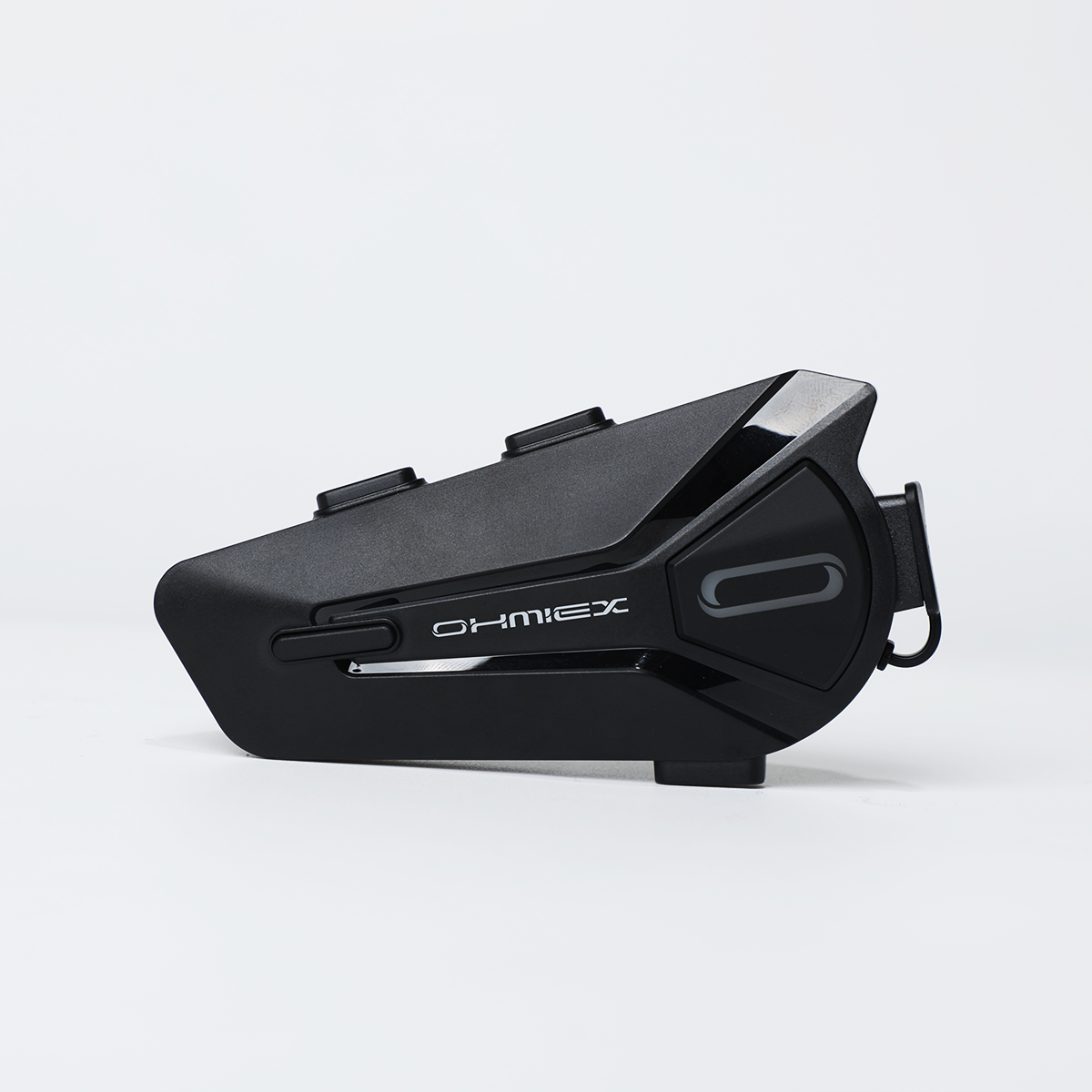
OHMIEX C1 Motorcycle Bluetooth Headset
The C1 is listed for helmet audio and hands-free communication. Confirm your navigation connection and any display arrangement before buying it to solve an app-specific problem.
View OHMIEX C1 Motorcycle Bluetooth HeadsetCommon Questions
Why can I hear music but no turn-by-turn directions?
The music app and navigation app have separate controls. Test a navigation phrase with music paused, then compare it through the phone speaker and headset.
Does a working GPS signal mean voice guidance is on?
No. Position tracking doesn't establish that spoken instructions are enabled or that the audio is sent to the helmet. Check the app's voice mode separately.
How can I test Google Maps audio without riding?
On the Android help page, Google identifies Play test sound under Navigation settings. Use it while parked to compare the phone and supported Bluetooth output.
Why is Apple Maps showing Steps instead of speaking?
Apple says a route beginning somewhere other than My Location shows Steps rather than Go and doesn't speak directions. Check whether you're viewing a preview.
Why do I hear a chime instead of directions?
Google Maps describes this when voice directions aren't downloaded or need updating. Follow its voice-download instructions before treating the chime as a speaker fault.
Should I reset my helmet headset before checking the app?
Check voice mode and the phone-speaker comparison first. If you later re-pair or reset, use the headset's own instructions and save the settings you'll need to restore.
Final Notes
Run one parked test with the phone speaker and one with the helmet. Keep the working route and output settings, then add your normal music or display setup. If the prompt still fails, send support those two results instead of a general no-sound report.