
Why Does My Helmet Bluetooth Play Music but Not Phone Calls?

Why Does My Helmet Bluetooth Play Music but Not Phone Calls?
Your helmet Bluetooth can play music while call audio is still going to the phone or another device. Check the active call's audio destination and call settings first; if you can hear the caller but they can't hear you, follow the microphone branch instead.
Run the checks while parked, using an actual call. Identify which direction fails, select the headset as the call output, and check call audio settings where available. Test app calls separately before re-pairing or replacing hardware.
This troubleshooting sequence uses Google and Apple phone guidance, plus the official OHMIEX C1 description for accessory context. Phone menus and headset controls differ, so model-specific pairing and connections must follow the instructions for your equipment. We haven't tested the C1's internal hardware or assumed a Bluetooth version from its inconsistent product-page labeling; sources were checked on October 9, 2026.
First, Decide Which Half of the Call Is Missing
If your helmet Bluetooth plays music but not calls, don't start by taking the speakers out. Music shows that your media-audio route is working; it doesn't test the call's route or microphone. The next question is what happens during an actual phone call.
Park, switch off the engine, and make a short test call at a comfortable volume. Ask the other person whether they hear you, then check whether you hear them. 'The call doesn't work' hides two different faults, and each needs a different next step.
| What happens | Start here | What the result tells you |
|---|---|---|
| You can't hear the caller, but they hear you | Select the headset on the active call screen; check call volume | Whether the incoming voice was sent somewhere else |
| You hear the caller, but they can't hear you | Check mute and the microphone setup | Whether the outgoing voice is the problem |
| Neither direction works, but music does | Check call output and phone-call access for the accessory | Whether the phone is using the headset for calls at all |
| Phone calls work; one calling app fails | Test that app separately | Whether the remaining fault is limited to the app |
Keep a note of the result. You don't need to solve every branch; work on the one you've actually observed.
Check the Active Call Screen Before Changing Pairing
Say you finish listening to a podcast, answer a call, and hear nothing in the helmet. Look at the call screen while you're parked. If the output is set to the phone or another accessory, change it to the helmet headset and repeat the conversation.
On iPhone, Apple explains how to choose an audio destination during a call. Use the Audio control on the active call screen and select the headset. Adjust the volume while the call is active, rather than judging it from the volume you used for music.
If your headset isn't offered as a call destination, music playback alone doesn't establish that the call connection is set up. Check the phone's accessory settings and the headset's phone-pairing instructions. Avoid copying a button sequence from a different headset model.
For this test, switch off other audio accessories you don't need. Google also recommends checking whether another paired device is receiving your calls. Keep the test simple: one phone, one headset, one call. You can restore your normal setup once you know this works.
On Android, Check the Accessory’s Call Setting
The Google Bluetooth troubleshooting guide separates music playback from making or receiving calls. Where your Android version offers separate controls, check that Phone audio is enabled for the headset. Media audio by itself addresses music playback.
- Open the phone's settings and find its connected or saved Bluetooth devices. Select the settings beside your helmet headset.
- Look for Phone audio, Calls, or a similarly named call setting. Enable it if available. The exact menu depends on the phone and software version.
- Return to the active call screen and confirm its audio destination. Make a short call in both directions.
- If those controls aren't present, consult your phone's current help page and the headset's instructions rather than searching endlessly for an older menu.
If turning on call audio restores the conversation, leave the speakers and microphone installation alone. You've found a phone-side setting that explains the symptom. Write down the change so you can recognize it if the problem returns after pairing again.
If You Hear Them but They Can’t Hear You
Start with mute. Check the phone's call screen and, if your headset instructions describe one, its own microphone-mute control. A working incoming voice doesn't prove the outgoing microphone is active.
Next, check the microphone position and any user-accessible connection exactly as the headset manual describes. Do this with the unit powered off. Look for a displaced microphone or a cable trapped after the liner was refitted; don't open the main unit or guess which plug to pull.
If the caller hears you clearly while parked but hears wind once you ride, that's a different symptom. Use the microphone maker's placement guidance and foam-cover instructions. Wind-noise troubleshooting won't explain a silent microphone in a quiet garage.
A voice recording isn't a reliable substitute for this call test: the app might use the phone's own microphone. Ask the person on the test call to listen to your voice while you use the selected headset. Ask the caller to report 'no voice,' 'clear voice,' or 'background noise only,' then note the audio destination selected on your call screen. Keep this test parked.
When a Phone Call Works but an App Call Doesn’t
If you're calling through an app, try an ordinary phone call separately. If that conversation works in both directions, you've narrowed the remaining problem to the app or how it handles the accessory.
Use that app's current instructions to check its audio destination and microphone permission. Change one thing, then repeat the same test. We wouldn't reset an otherwise working headset before checking the app that fails.
If you use a bike display or another device between the phone and headset, try the simplest supported phone-to-headset setup first. A direct call that works is useful evidence for the display's support team. It doesn't prove the headset is compatible with every display arrangement.
Re-Pair Once, Then Give Support a Useful Result
If the call destination and settings look correct, restart the phone and headset. If needed, remove the phone's saved pairing and pair again using the headset's actual phone-pairing instructions. A factory reset is a later step, especially if it will remove settings you still need.
If you have access to another compatible phone, repeat the parked call with that phone following the same instructions. Success there points your next investigation toward the original phone or its setup. Failure on both gives support a clearer case, without proving which internal component has failed.
Send support the phone model, software version, headset model, pairing method, and the failing direction. Include whether ordinary calls and app calls behave differently. 'Music works; caller hears me; I hear nothing even with headset selected' is a much better report than 'Bluetooth broken.'
What This Means if You Use an OHMIEX C1
If you own a C1, use the same phone-side checks, then request its exact pairing and microphone instructions if the fault remains. We'd resolve an audio-routing problem before buying another headset; a replacement won't automatically change your phone's call destination.
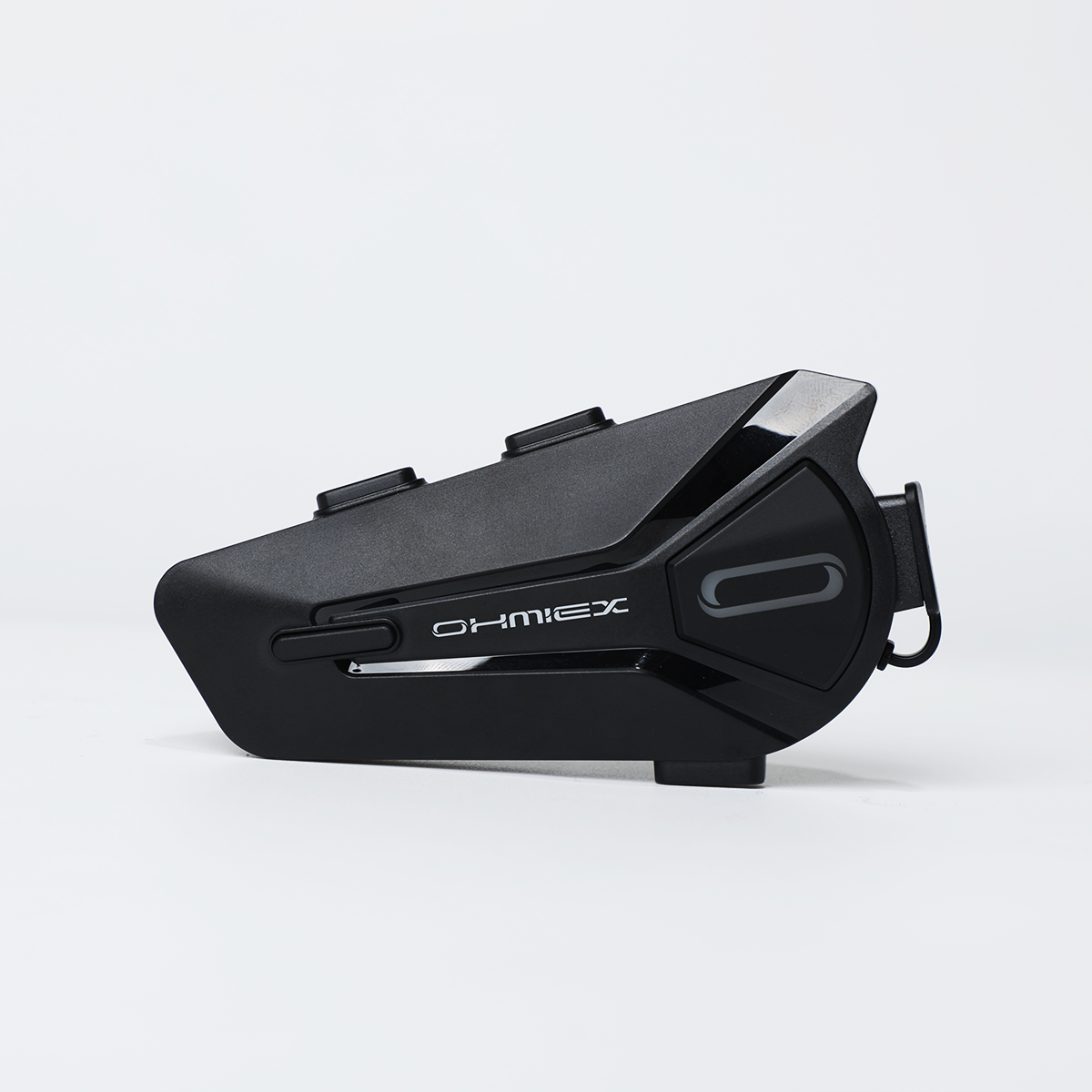
OHMIEX C1 Motorcycle Bluetooth Headset
The OHMIEX C1 is a helmet audio and hands-free communication accessory. For a C1 call problem, ask the seller for the phone-pairing instructions that match your unit and installation.
View OHMIEX C1 Motorcycle Bluetooth Headset detailsTroubleshooting Questions
Why can I hear music but not the person calling me?
Music playback and call output can be handled differently by the phone. During a parked test call, check where the call is being sent and adjust the volume while that call is active.
What if the headset isn't listed on the call screen?
Leave the speaker installation alone for now. Follow the headset's phone-pairing instructions, check the phone's call settings, and ask support to confirm call compatibility for that phone-and-headset combination. Repeatedly moving the speakers won't add a missing call destination.
Where is Phone audio on Android?
Google places it in the settings for the paired accessory on supported versions. Phone manufacturers and software releases use different menus; consult your current phone guidance if the control isn't shown.
Can the microphone be faulty even when music plays?
Yes. Playing music tests incoming audio, not the microphone's outgoing voice. Check mute and the manufacturer-described microphone setup before concluding that a component needs replacement.
Should I factory-reset the headset immediately?
Start with call routing, mute, and the simplest supported pairing. If a reset is needed, use the exact model instructions and note which saved settings will be removed.
What should I tell support if only app calls fail?
Name the app and version, describe the failing direction, and say whether ordinary phone calls work. Include the selected audio destination so support can investigate the specific route that fails.
Final Notes
Make one parked test call and note who can hear whom. Follow that branch, changing one setting at a time. If ordinary calls still fail after the output, mute, and pairing checks, send the observations to support; keep calls off during rides until the setup works without distracting adjustments.